Key takeaways
- Your phone shares location, ad identifiers and app activity through settings that are often on by default. Most can be changed in a few taps.
- These are not “hacks.” They are features that apps and services use with your permission, so the fix is reviewing the permissions you have already granted.
- Apple and Google both offer a tool that shows which apps recently used your location, camera and microphone.
- Menu names differ by phone make and software version. The steps below follow Apple’s and Google’s own help pages, and may look slightly different on your phone.
This article is general information based on Apple and Google support pages. It is not a guarantee of privacy.

First, what “tracking” means here
Your phone uses GPS, Wi-Fi, Bluetooth and mobile networks to work out where you are, and apps ask permission to use that and other data. Advertisers also use an “advertising ID” to link your activity across apps. Apple describes tracking as linking data from an app with data from other companies’ apps and websites for targeted advertising or advertising measurement, or sharing it with data brokers.
Below are 10 places to check. Where steps differ, they are given for iPhone and for Android (written from Google’s pages for Pixel and Android 12 and up).
1. Location Services, the master switch
- iPhone: Settings > Privacy & Security > Location Services. Apple says that when it’s off, apps can’t use your location in the foreground or background, which limits many apps.
- Android: Settings > Location > Use location. Google says that when it’s off, apps and services can’t get your device’s location, though you can still get local results and ads based on your IP address.
Turning it off completely can be too much. Items 2 to 4 let you narrow it instead.
2. Apps with location they don’t need
- iPhone: In Location Services, choose each app’s setting. Apple says apps can ask for “While In Use” permission, and you can tap Allow Once so that the app must ask again next time. If you allow background location, your iPhone will remind you from time to time and show those locations on a map.
- Android: Google says that on Android 12 and higher you can grant an app approximate location only, and manage each app’s precise location permission separately.
A weather or shopping app rarely needs your exact position all the time.
3. “Significant locations” history (iPhone)
Your iPhone keeps a list of places you visit often. To delete what’s stored, go to Settings > Privacy & Security > Location Services > System Services > Significant Locations & Routes and tap Clear History. Apple says clearing removes your significant locations everywhere you’re signed in to the same Apple Account, and that this data is end-to-end encrypted and can’t be read by Apple. The same Significant Locations & Routes screen is where Apple’s safety guide says to turn the feature off.
4. Timeline / Location History (Android and Google Account)
Google says Timeline is a Google Account setting that saves your visits and routes to a map. On a Pixel, Settings > Privacy > Google location history is the setting that “saves where you go with your device.” You can review what is saved there. (Menu names vary by phone.)
5. Wi-Fi and Bluetooth scanning
Even with GPS off, your phone can estimate where you are from nearby Wi-Fi networks and Bluetooth devices.
- Android 12 and up: Settings > Location > Location Services, then turn Wi-Fi scanning or Bluetooth scanning on or off. The same menu has Location Accuracy, which Google says uses Wi-Fi, mobile towers, GPS and sensor data, and which contributes to Google’s crowd-sourced signal database using temporary, rotating identifiers not tied to your account.
- iPhone: Apple says apps must ask permission to use Bluetooth (except to play audio). Check Settings > Privacy & Security > Bluetooth. Apple also says that with Location Services on, your iPhone periodically sends the locations of nearby Wi-Fi hotspots and mobile towers to Apple’s crowd-sourced database, stored with encryption and not personally identifying you.
6. Permissions you gave and forgot
- iPhone: In Settings > Privacy & Security you can see which apps have asked for access to Location Services, Contacts, Calendars, Photos, Bluetooth, Microphone, Camera, Health and more, and change each one. Apple notes an app won’t appear in a list until it has asked permission.
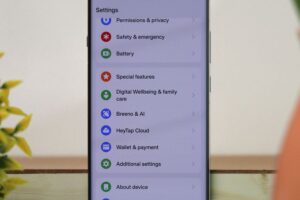
- Android: Settings > Privacy > Permission manager controls app access to your data, and separate Camera access and Microphone access switches control those for all apps.
A quick audit of microphone, camera, contacts and photo access is one of the most useful five minutes you can spend.
7. Cross-app tracking and your advertising ID
- iPhone: Settings > Privacy & Security > Tracking. Apple says apps must ask permission before tracking you across other companies’ apps and websites. If you turn off Allow Apps to Request to Track, each app that asks is treated as if you tapped “Ask App Not to Track.” Apple says that if you tell an app not to track, it can’t access the advertising identifier (IDFA).
- Android: Google’s help says you can reset your advertising ID (a new one replaces it) or delete it (nothing replaces it). Google’s developer help lists the path as Settings > Privacy > Ads > Delete advertising ID, but that page is several years old. Google’s current consumer help page points to Settings > Google > All services > Ads. Your phone may show either.
Deleting or limiting the ID doesn’t stop all ads. Google says apps can still show ads, though they may be less relevant, and an ad may still be personalized depending on your ad settings and the app’s own policies.
8. Ad topics and app-suggested ads (Android)
Google says Android notes topics of interest based on the apps you use, and apps can ask for your “ad topics” or for ads suggested by apps you’ve used before. Limited data can also be shared among apps and sites to measure how ads perform. In Settings > Google > All services > Ads > Ads privacy, you can manage ad topics, app-suggested ads and ad measurement.
9. Usage and diagnostics
On a Pixel, Settings > Privacy > Usage & diagnostics controls whether you share data to help improve Android. It’s a smaller item than location, but it is data leaving your phone, so it’s worth knowing it’s there.
10. Check what your apps actually did
Both phones can show you the evidence.
- iPhone: Settings > Privacy & Security > App Privacy Report > Turn on App Privacy Report (iOS 15.2 or later). Apple says it starts collecting only after you turn it on, shows in the past 7 days how many times and when apps accessed your location, photos, camera, microphone and contacts, and lists web domains apps contacted. The data is stored encrypted on your device, and turning the report off clears it.
- Android: Settings > Privacy > Privacy Dashboard shows which apps recently used permissions. The same menu has Show clipboard access, which shows a message when an app reads what you copied.
If an app used your location or microphone more than you’d expect, change its permission or uninstall it.
A 5-minute checklist
- Open Location settings and set most apps to “While in use” or “Ask next time”
- Switch off precise location for apps that don’t need it (Android 12 and up)
- Review camera, microphone and contacts permissions
- Turn off or limit app tracking and the advertising ID
- Turn on App Privacy Report (iPhone) or open the Privacy Dashboard (Android)
- Check your Google Timeline or Apple significant locations, and clear them if you don’t use them
Keeping your accounts safe is part of privacy too. Our guide to backing up your phone covers the safety net, and our guide to two-factor authentication covers protecting the accounts behind it.
Frequently asked questions
Is my phone listening to me? The sources here don’t address that. They show you how to see which apps have used your microphone and to switch that permission off.
Will turning off location break my apps? Some features will stop working. Apple says turning Location Services off limits the performance of many apps, and that for emergency calls your location may still be used regardless.
Does deleting my advertising ID stop ads? No. Apps can still show ads, though they may be less relevant, according to Google’s help pages.
Do these steps work on a Samsung or other Android phone? The paths above come from Google’s Pixel and Android help pages, and Google says steps vary by device. Look for the same names in Settings > Privacy or by searching Settings.
Information checked on: November 13, 2026. Menu names change with software updates.
Sources
- Apple Support, About privacy and Location Services in iOS, iPadOS, and watchOS
- Apple Support, If an app asks to track your activity
- Apple Support, About App Privacy Report
- Apple iPhone User Guide, Clear your location history in Maps on iPhone
- Google Account Help, Manage your Android device’s location settings
- Google Pixel Phone Help, Manage security & privacy settings on your Pixel phone
- Android Help, Manage your ad privacy settings on Android
- Google Play Console Help, Advertising ID