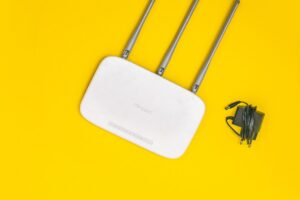
Your home Wi-Fi router is the front door to everything on your home network. A few settings, most of them one-time changes, make it much harder for strangers to get in. This guide follows advice from the US Federal Trade Commission (FTC).

Key takeaways
- Use WPA3 Personal encryption if your router offers it. Use WPA2 Personal if not.
- Change the router’s default admin login and network name, and set two different passwords.
- Keep the router’s software up to date.
- Turn off remote management, WPS and UPnP, and use a guest network for visitors.
Step 1: Turn on strong encryption
Encryption scrambles the traffic between your devices and the router. The FTC says to choose WPA3 Personal if you can. If your router does not offer it, choose WPA2 Personal. If the only options are WPA or WEP, those are outdated. Update the router’s software and check again. If WPA2 or WPA3 still is not available, the FTC suggests thinking about a new router.
Step 2: Change the default settings
Routers ship with a default admin username, admin password and network name. Change all three to something unique. Avoid names, addresses or the router’s brand in the network name, since those give clues to an attacker.
Use two different passwords
There are two separate passwords. The Wi-Fi password is what your devices use to join. The admin password lets someone change the router’s settings, including the Wi-Fi password. If the admin login is weak, other protections can be undone. To learn how to change each one, search for the manufacturer’s name plus “admin password” or “Wi-Fi network password,” or contact the manufacturer. Our guide to strong passwords and password managers can help you create them.
Step 3: Keep the router updated
Manufacturers release software updates (firmware) to fix security holes. Check the maker’s website before you set up the router and again from time to time, and register the router if you can so you receive update notices. If your internet provider supplied the router, ask whether it installs updates automatically.
Step 4: Switch off risky conveniences
- Remote management lets someone change settings over the internet.
- WPS (Wi-Fi Protected Setup) lets devices connect with a button push.
- UPnP (Universal Plug and Play) lets devices find each other automatically.
The FTC says each adds convenience but weakens security, so turn them off if you do not need them.
Step 5: Add a guest network and check the firewall
A guest network has its own name and password. Fewer people know your main password, and a visitor’s infected phone stays off your main network. Most routers also have a built-in firewall. Open the settings and confirm it is on. When you finish, log out of the router’s admin page.
Quick checklist
- Encryption set to WPA3 or WPA2 Personal
- New admin username and password
- New network name and Wi-Fi password
- Firmware checked for updates
- Remote management, WPS and UPnP off
- Guest network set up
- Firewall on, and logged out of admin
FAQ
How do I find my router’s settings?
Look at the manufacturer’s instructions or the label on the router, or search the maker’s support pages for your model.
Is a VPN part of this advice?
The FTC article we read does not cover VPNs, so this guide does not either.
Should I also protect my accounts?
Yes. See our explainer on two-factor authentication.
My router is old. What then?
If it cannot use WPA2 or WPA3 even after an update, the FTC suggests considering a replacement.
This is general information, not personal professional advice. Menus differ by router, so check your manufacturer’s instructions.
Information checked on November 19, 2026.
Sources
Federal Trade Commission (Consumer Advice), “How To Secure Your Home Wi-Fi Network,” dated December 2022.